Last Updated: May 16th, 2026
Downloading and Installing Webull Desktop on Fedora Linux
Introduction:
The reliance on mobile-specific applications can negatively impact the user experience when navigating and interacting with certain services. This is particularly evident with investment and stock brokerage applications, where complex tasks are often more difficult to perform on a mobile device than on a desktop system.
As a result, I frequently research whether mobile-focused platforms offer desktop counterparts that provide improved usability and navigation. While some mobile applications can create a frustrating user experience, these limitations can often be mitigated by utilizing an alternative platform better suited for productivity-oriented tasks.
One surprising discovery is that Webull offers a desktop application for Linux, including support for Debian and Ubuntu-based distributions. On Debian and related distributions, the installation process is relatively simple and straightforward, requiring little to no interaction with the terminal.
Download & Installation:
Although Webull provides desktop applications for Fedora Linux, the installation process is considerably more complex than its Debian-based counterpart. This tutorial is intended to simplify the procedure and address the challenges that users may encounter during installation.
For Fedora-based systems, the terminal is required to complete the installation successfully. Additionally, a post-installation issue may occur, which will be discussed later in this guide.
For the sake of simplicity, readers may copy and paste the commands provided throughout this tutorial. However, certain commands will require modifications to account for differences in file locations and directory paths. To indicate where adjustments may be necessary, two asterisks (**) will be used to denote portions of commands that may differ between this tutorial and the reader's system.
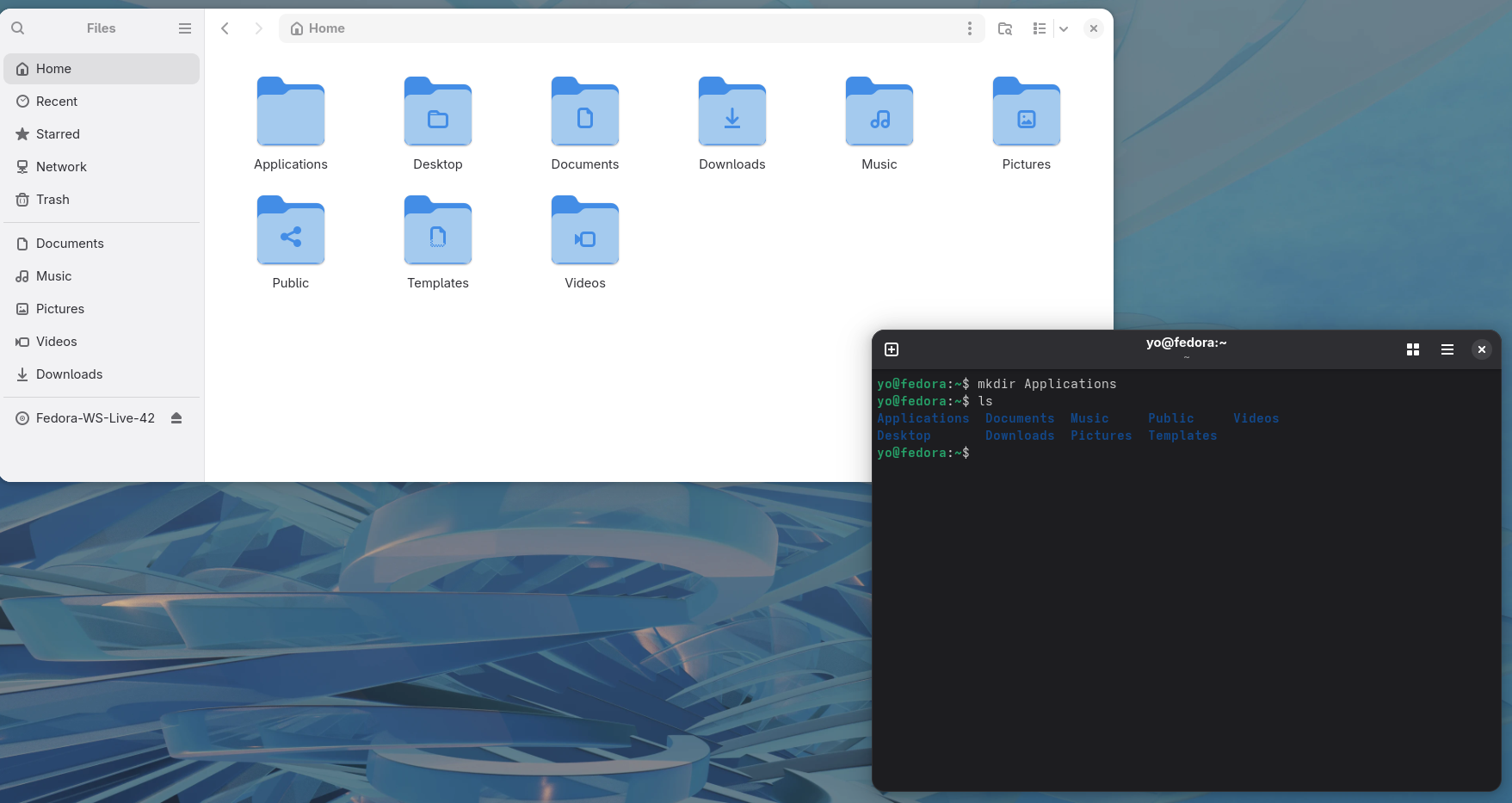
- Open the terminal and type in the command "mkdir Applications." This is strictly preferential, you can make the download location in the Download directory if preferred.
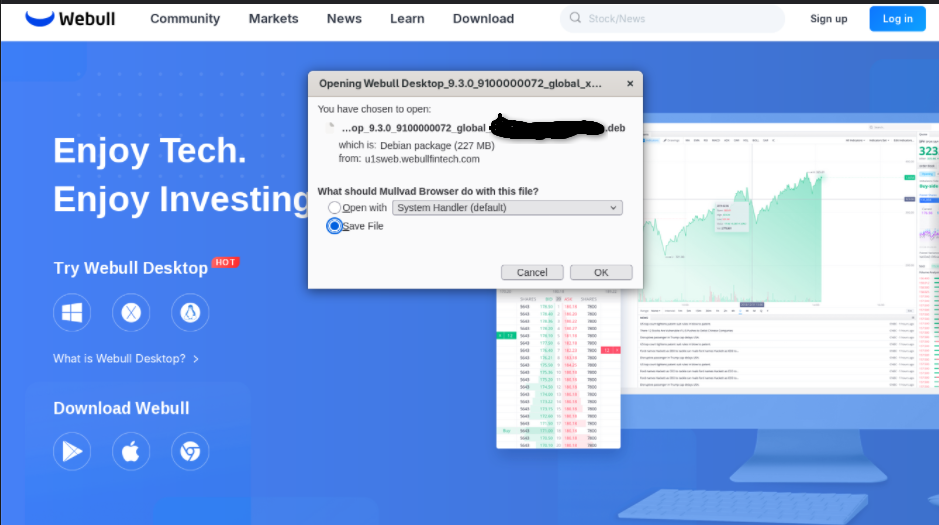
- Navigate to the URL: https://www.webullapp.com/introduce.
- Click on Linux(Penguin) Logo to initialize Download.
- A pop window will appear and press "OK" button.
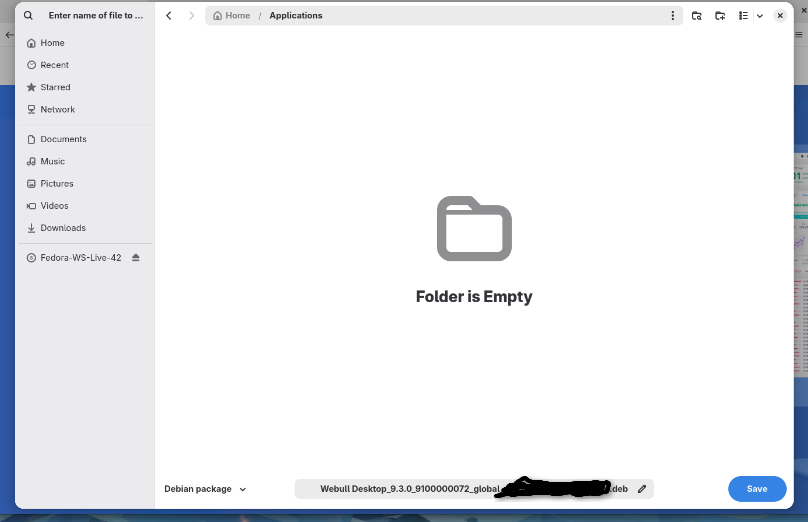
- By default the program will download to "Downloads" directory. However, in this directory navigate to /home/**yourusername/Applications or ~/Applications. Click "Save" button on the bottom right corner.
- Open the terminal if not already opened. Type in the command:
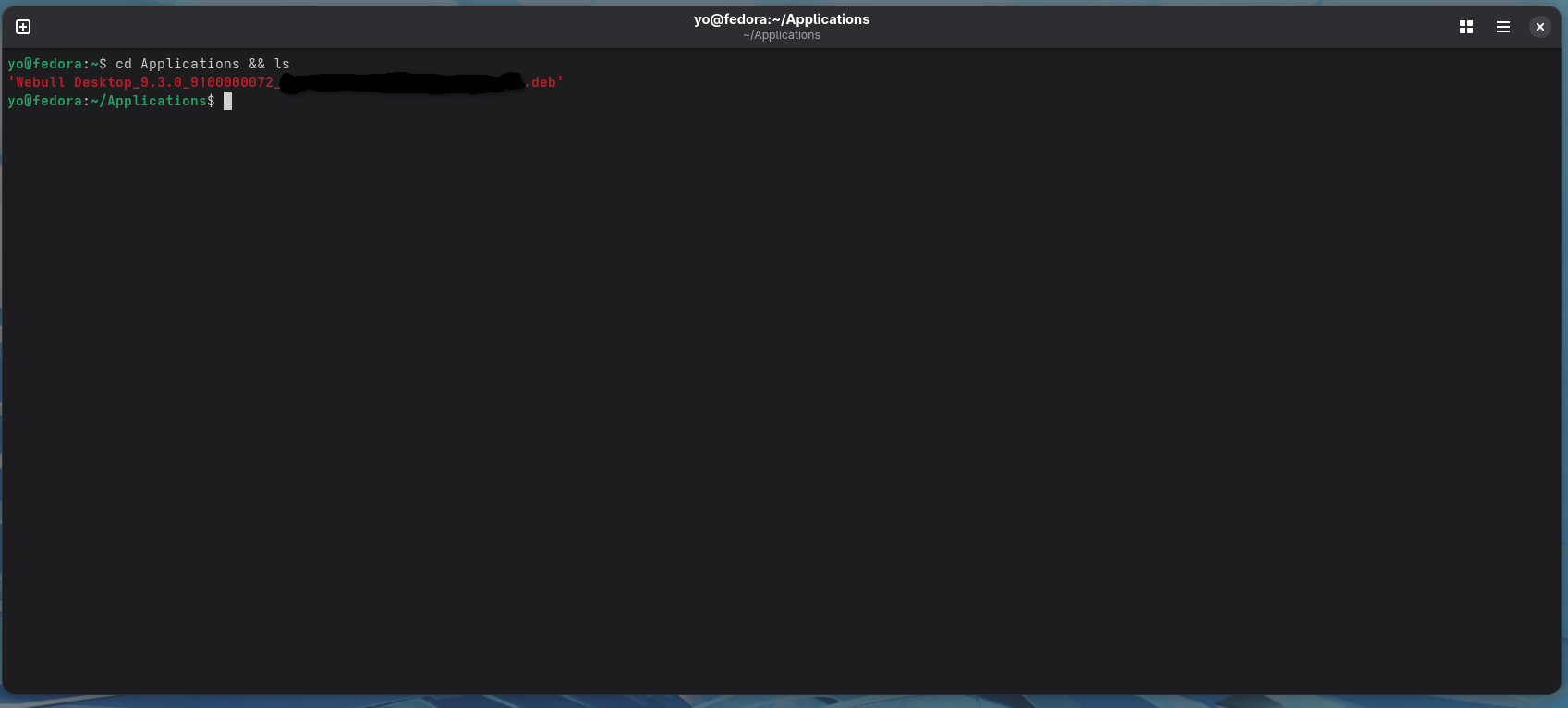
- Next, navigate to the Applications directory and displaying the Webull Debian program by typing in the command:
- Copy and Paste the title Webull package or type it into the command:
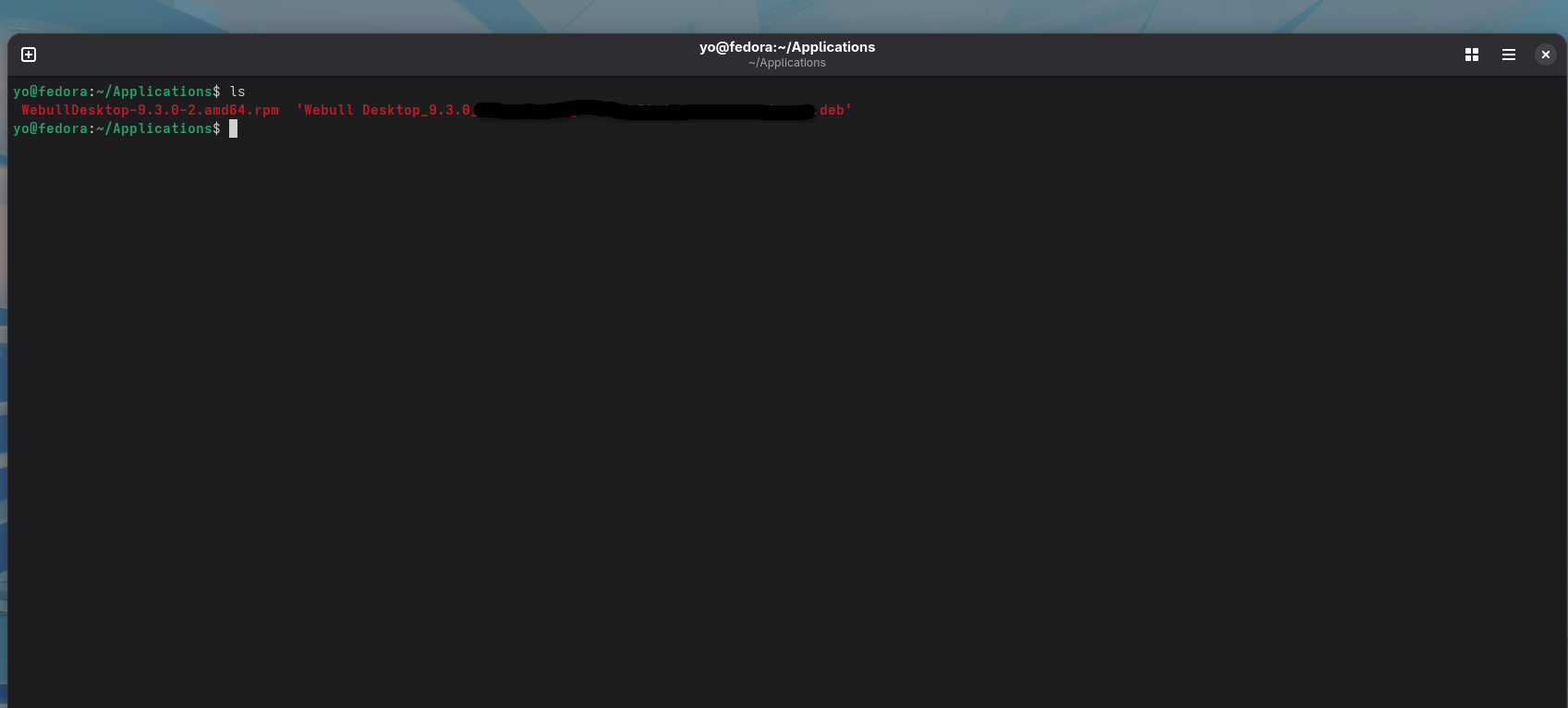
- Wait until the conversion of the Debian package to fully converted to a RPM. Once it is fully completed the end will result will display in the picture below.
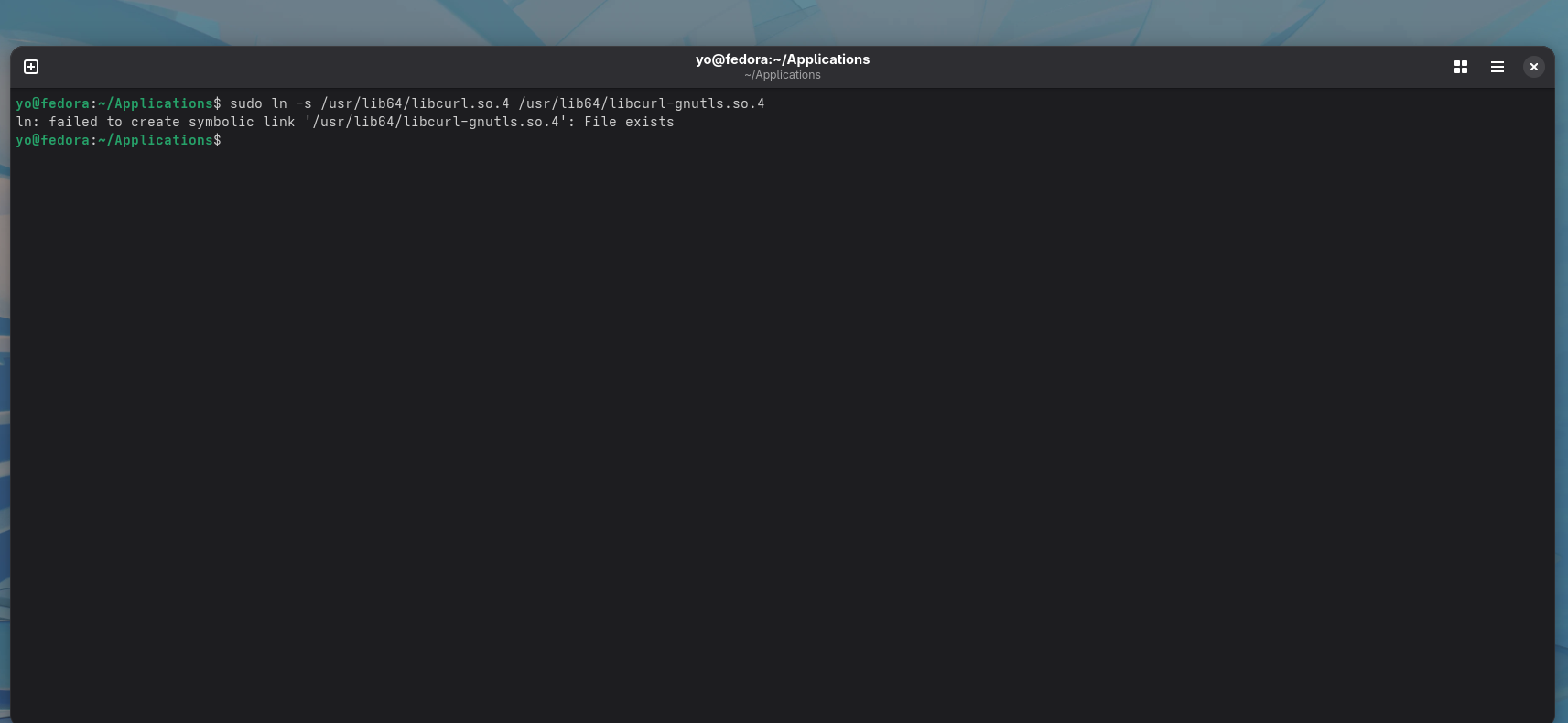
- One of the dependencies required for Webull desktop to work is has a different naming convention on Debian from Fedora. Webull Desktop will program will be expecting the Debian based naming convention dependency of "libcurl-gnutls.so.4." This dependency already exists on Fedora. To rectify this issue, it is needed to link both names together. Type the command:
- To confirm the change. Type:
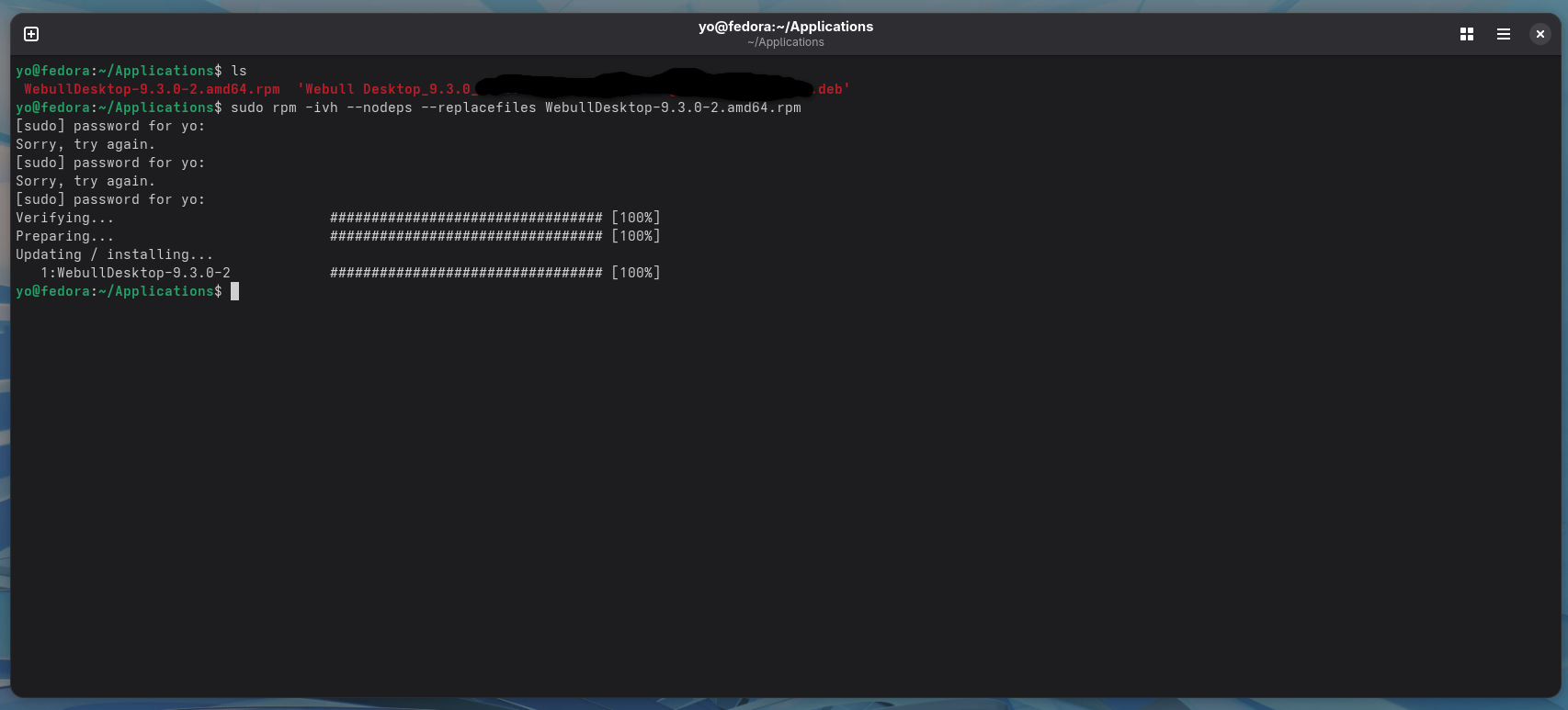
- Now, the installation of Webull Desktop can be installed. Make sure you are in the "Applications" directory and copy and paste the exact naming convention of the RPM based Webull program. Add the naming convention to the command below. Type command "ls" to retrieve the RPM package name.
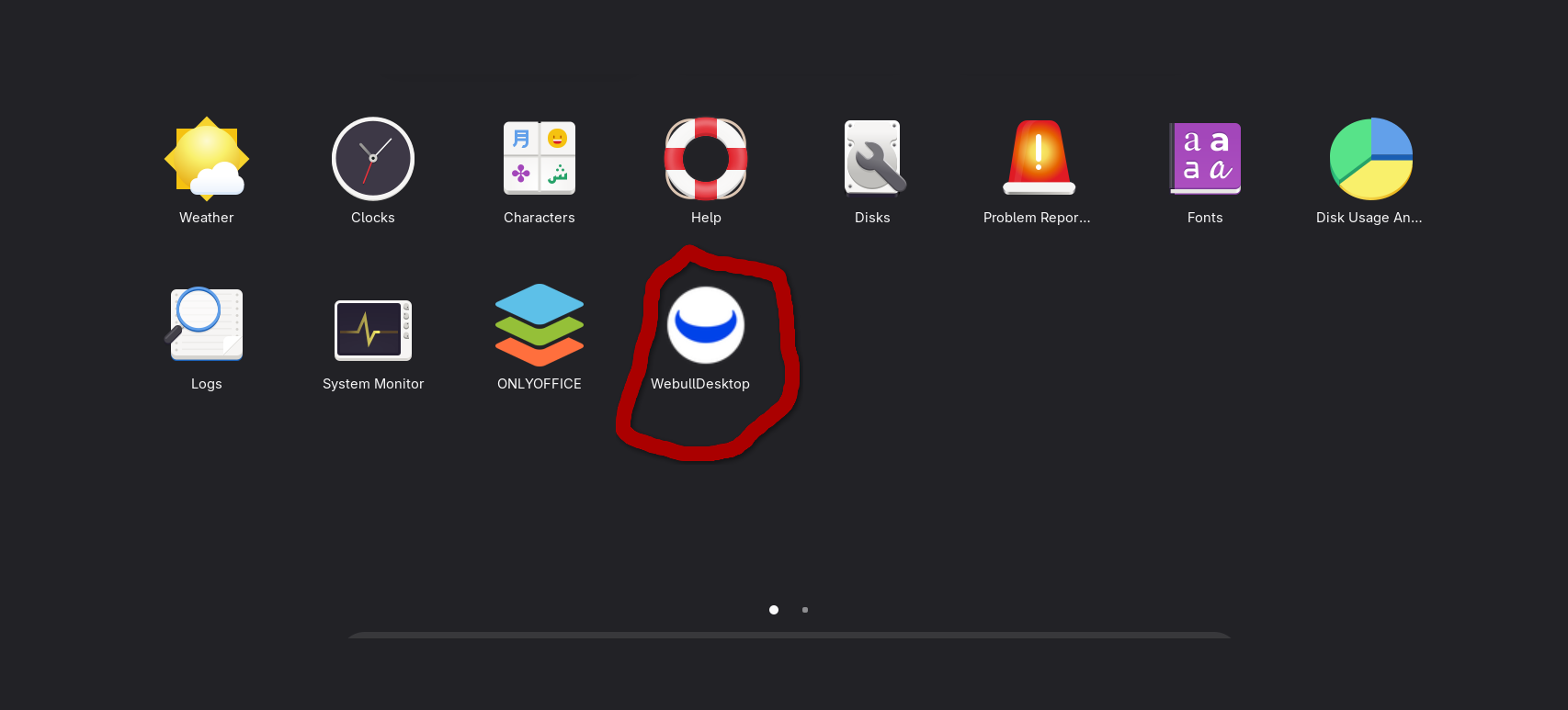
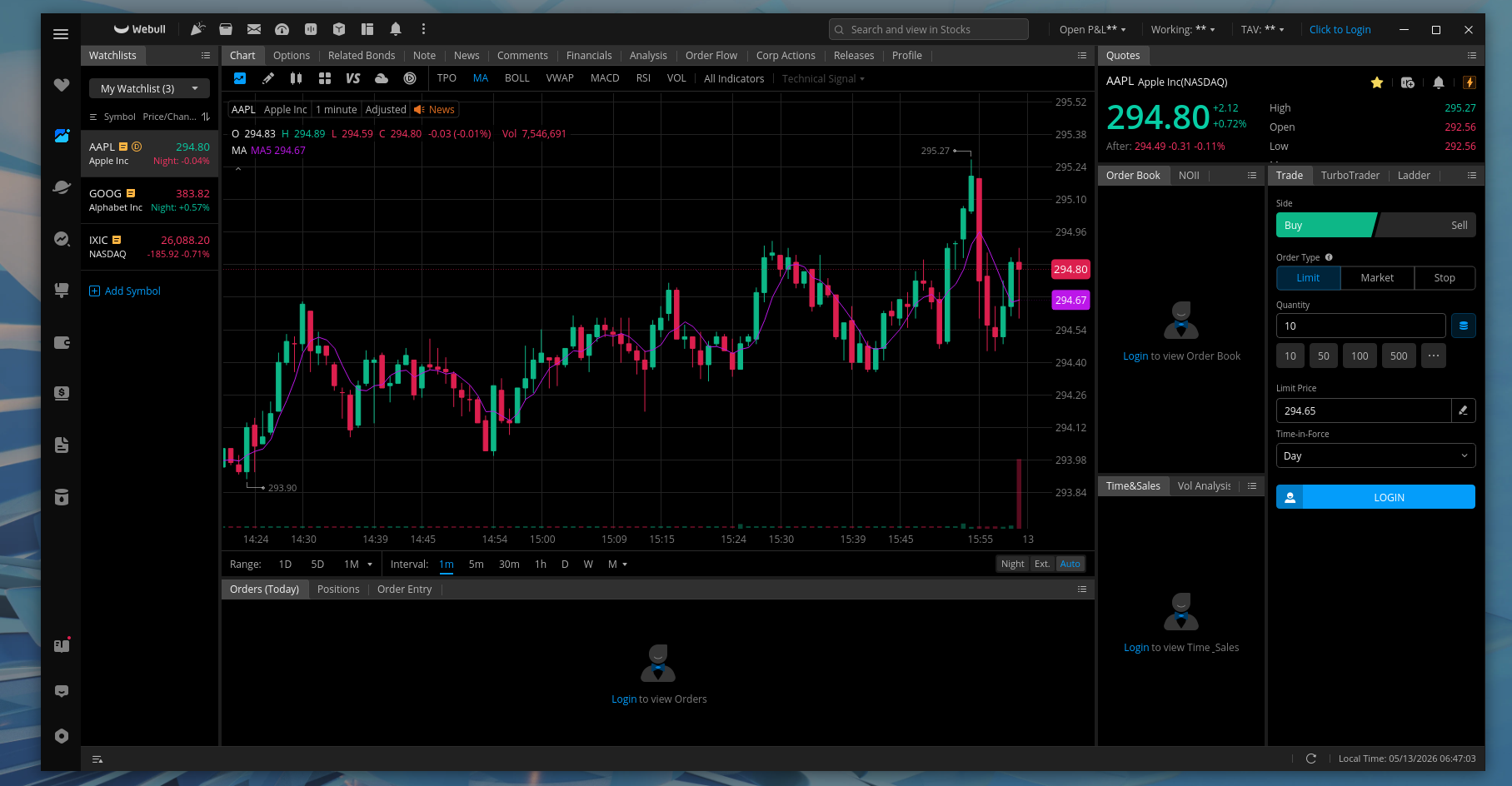
- Now navigate to program menu and you will see Webull Desktop Application. Click on it and the program should initialize.
mkdir Applications

sudo dnf install alien –y
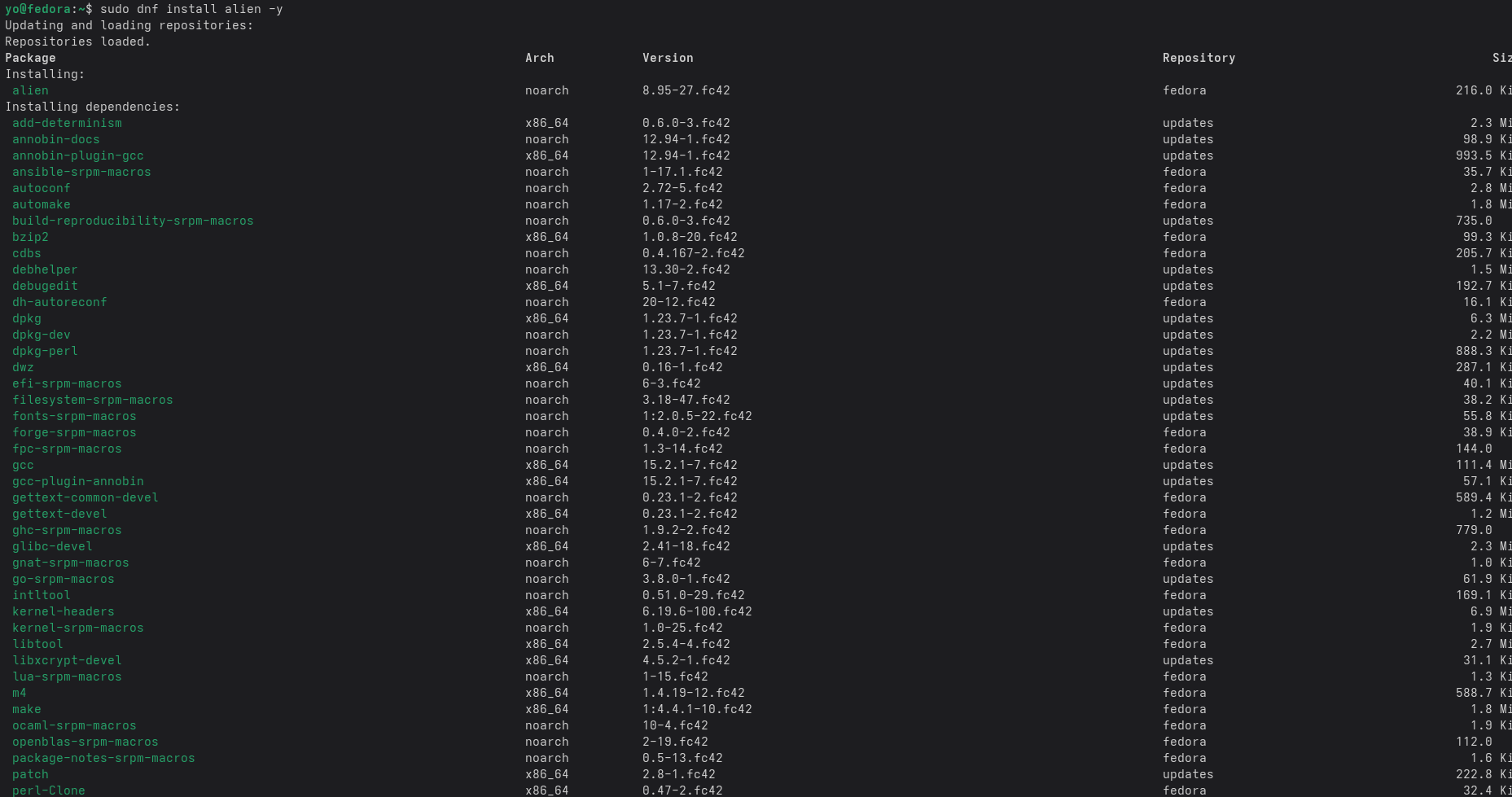
The "-y" is a flag for dnf package manager meaning "yes". It will automatically proceed to download the package and install. If you want to view the package and it dependencies prior to download and installation then simply remove the flag.
cd Applications && ls
sudo alien –r 'Webull Desktop_9.3.0_9100000072_global_x64signed_**XXXX.deb
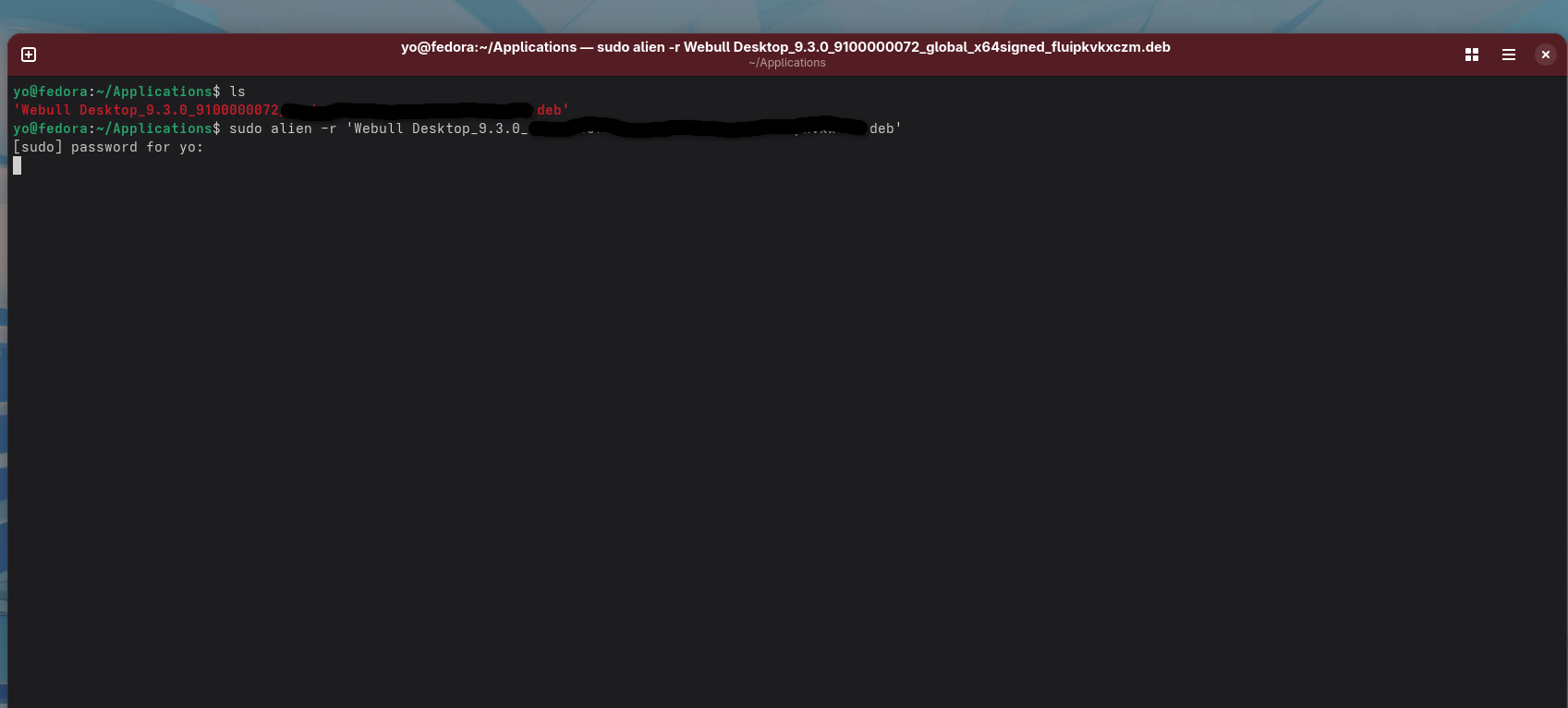
The double asterisk(**) is applicable, copy and paste your actual unique name of the Webull program. Every download request generates a unique licensed key which is associated in the name of the program when requested to be downloaded from the source.
This command will convert the Debian based package into an RPM package. The RPM package manager is native to the Fedora based distributions. The conversion will allow the Webull desktop to be operable once installed.
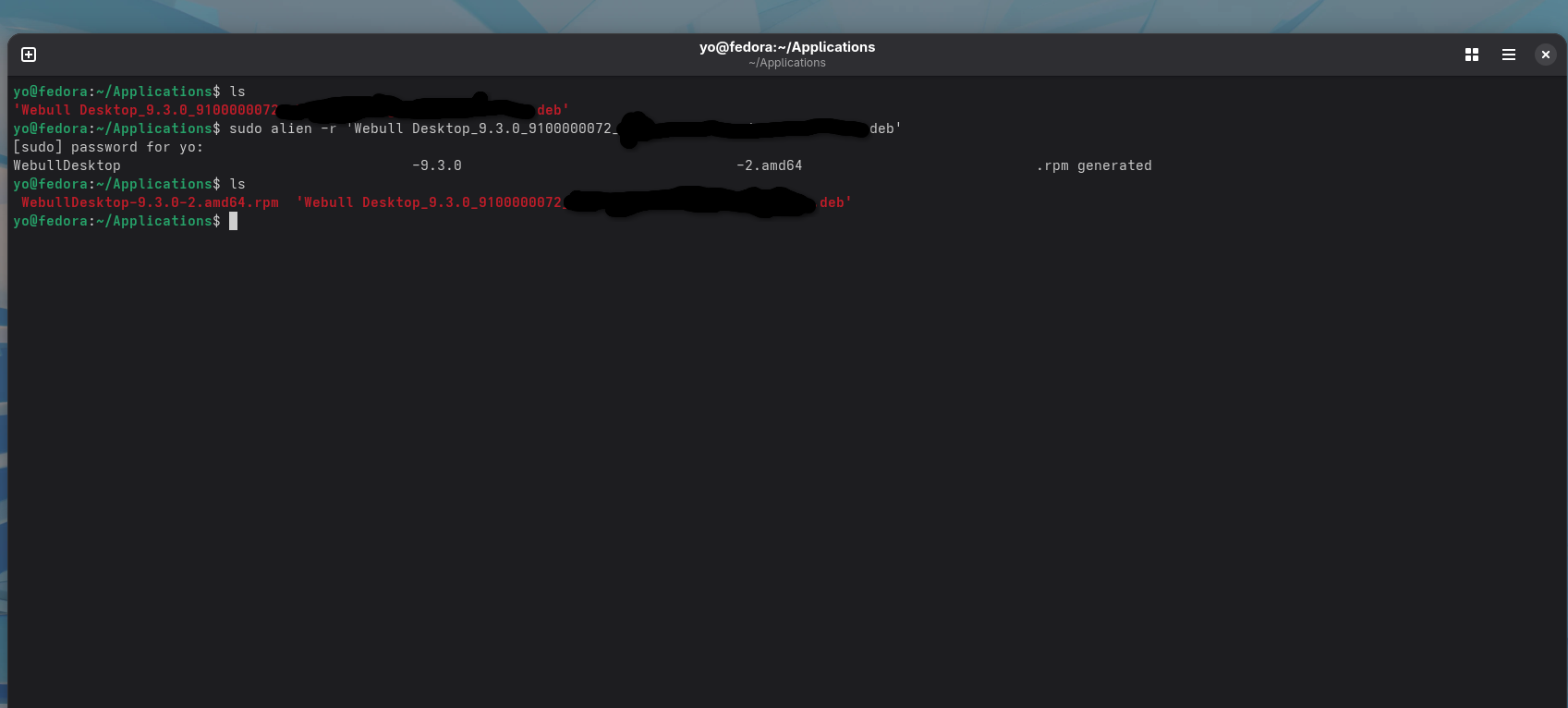
To confirm the RPM is fully converted, type the command
ls
sudo ln -s /usr/lib64/libcurl.so.4 /usr/lib64/libcurl-gnutls.so.4
ls -l /usr/lib64/libcurl-gnutls.so.4

ls
Remember to replace the double asterisk(**) with the RPM package name
sudo rpm -ivh --nodeps --replacefiles **WebullDesktop-9.3.0-2.amd64.rpm
Upgrading Program
As of now, there isn't exactly a way to automatically update the software. Once I find a viable solution this section of the tutorial will be updated. There are a few potential solutions keep the software up-to-date are listed below.
- Manually update it by going through the tutorial procedure again.
- Webull has GitHub, so it may be possible to add Repository to GUI based software manager such as Software or Discover.
- You maybe able to update the software within the program, by clicking on the 3 horizontal line is is located at the top left of the program and look for "Check for Update." Click on it, and a new window will appear. It will convey whether or not if there is an update.
- Utilization of Distrobox seems to be the most probable chance of getting to to work seamlessly.
Known Problem:
Post installation of the Webull desktop program a problem is the operating system will download updates, but won’t be able to apply the updates. There seems to be a permission confliction error where Qemu and Webull claim ownership of the directory /usr/share/applications. I haven’t look too much into a work around, but I have been deleting the RPM and updating the system then reinstalling the RPM afterwards.